Free Virtual Homestaging with Google Gemini: A Guide for Agents
Turn an empty apartment into an attractive listing in minutes, for free. Step-by-step guide with real examples and prompts for Google Gemini.

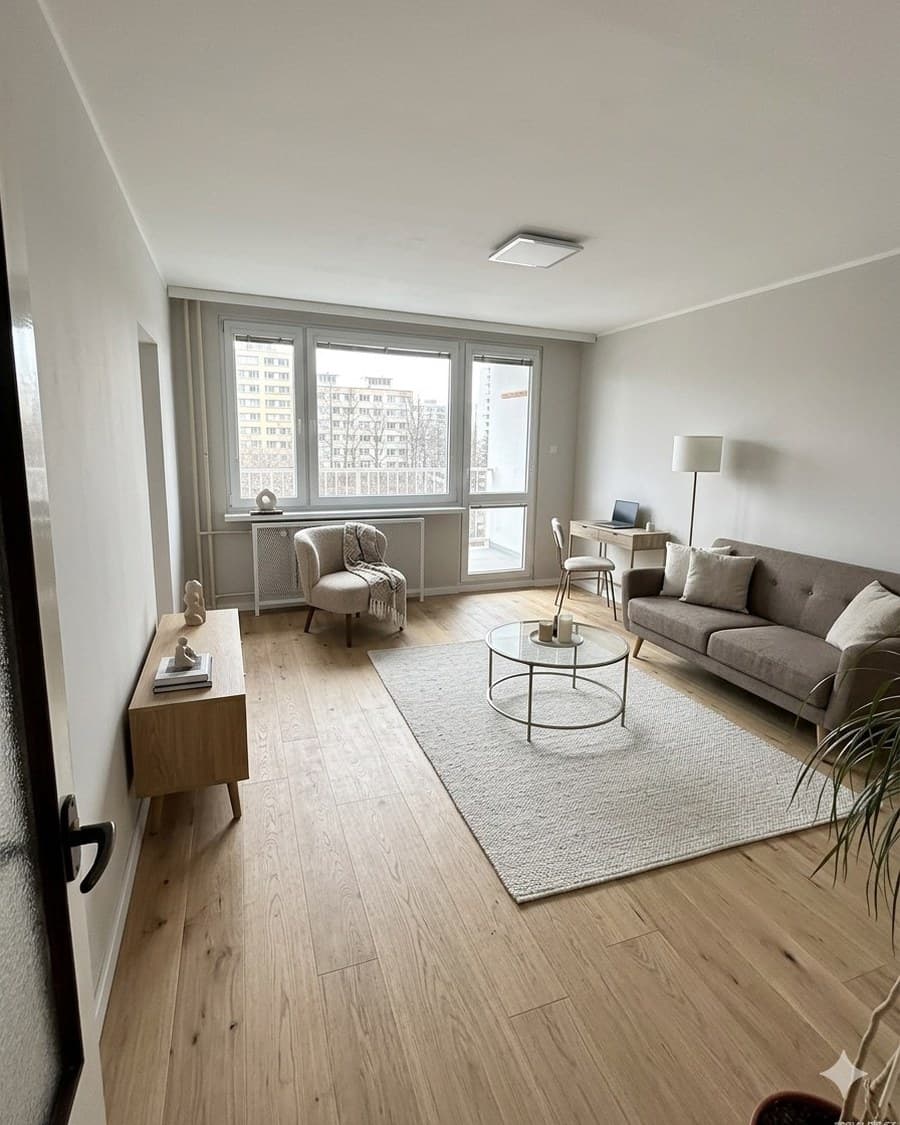
Empty apartments don't sell well. Every agent knows this. Buyers can't picture themselves living in bare walls and worn-out floors. The listing just doesn't catch their eye.
Physical homestaging costs thousands and takes days. Professional virtual staging services charge hundreds per photo. But what if I told you Google Gemini can do the same, for free, in minutes, right in your browser?
What Is Virtual Homestaging
Virtual homestaging means digitally furnishing an empty or unfurnished apartment with furniture and decor. Instead of moving a real sofa in, AI generates a photorealistic image of the room, complete with furniture, rugs, lighting, and decorations.
The result? A listing that looks like it belongs in an interior design magazine. At a fraction of the cost and time.
Why It Matters
- Staged homes sell up to 73% faster (Real Estate Staging Association)
- Sale price is 1–10% higher according to 29% of surveyed agents (NAR Profile of Home Staging 2025)
- 83% of agents say staging helps buyers envision the property as their home (NAR)
And 45% of agencies already use virtual staging. The number is growing fast.
Why Google Gemini
There are plenty of virtual staging tools on the market, from specialized platforms like Virtual Staging AI ($16/photo) to general AI generators.
Google Gemini (specifically the image generation model) has a unique advantage:
- It's free with a standard Gemini account
- Understands context, you describe the room and style, it adds the furniture
- Can edit existing photos, no need to generate from scratch
- Works in any language, write prompts in English, Czech, or whatever you prefer
It's not perfect on the first try. But with a good prompt, you'll get a result that works for a listing.
How To: Step by Step
1. Photograph the Empty Apartment
A quality photo is the foundation. A few rules:
- Shoot landscape (horizontal), not portrait, it processes better
- Natural light, turn on all lights and open blinds
- From the corner, capture as much of the room as possible
- Steady hands or tripod, a blurry photo gives a blurry result
- Clean up, even AI struggles with clutter on the floor
2. Open Gemini and Upload the Photo
Go to gemini.google.com. Sign in with your Google account. Click the image icon in the chat and upload your photo.
3. Write the Prompt
This is the key to success. A short prompt like "furnish this room" gives average results. Gemini needs precise instructions, especially about what it must not change.
Here's the prompt we use and it works reliably:
Edit the original interior photograph directly and create a realistic homestaging / lightly modernized version of the space.
Room type: living room
Key rule: This is not about creating a new room. It's about editing an existing photograph. The output must be the same room, the same photo, the same framing, only visually modified.
Must be preserved: exact room layout, all walls/corners/edges, exact position and size of doors and windows, camera angle, perspective, photo composition.
Critical restrictions: do not move/remove/wall over doors, do not change door opening size or shape, do not move windows or wall corners, do not change camera angle or perspective, do not regenerate a new interpretation of the room.
Allowed changes: visually modernize door surfaces, update flooring, update wall surfaces, improve lighting, add realistic furniture and decorations matching the specified room type.
Style: modern, clean, bright, elegant, realistic, suitable for property presentation.
Priority: Faithfulness to the original photograph is priority number one. Do not create a new scene. Only edit the existing photograph while preserving all structural elements 1:1.
It looks long, but the precision makes the difference. Gemini tends to "recreate" the room from scratch if you don't explicitly tell it to edit the existing photo. The restrictions section is critical. Without it, AI will move doors, change perspective, or add windows that weren't there.
Tip: Just change the room type at the top. Keep the rest of the prompt the same for all photos.
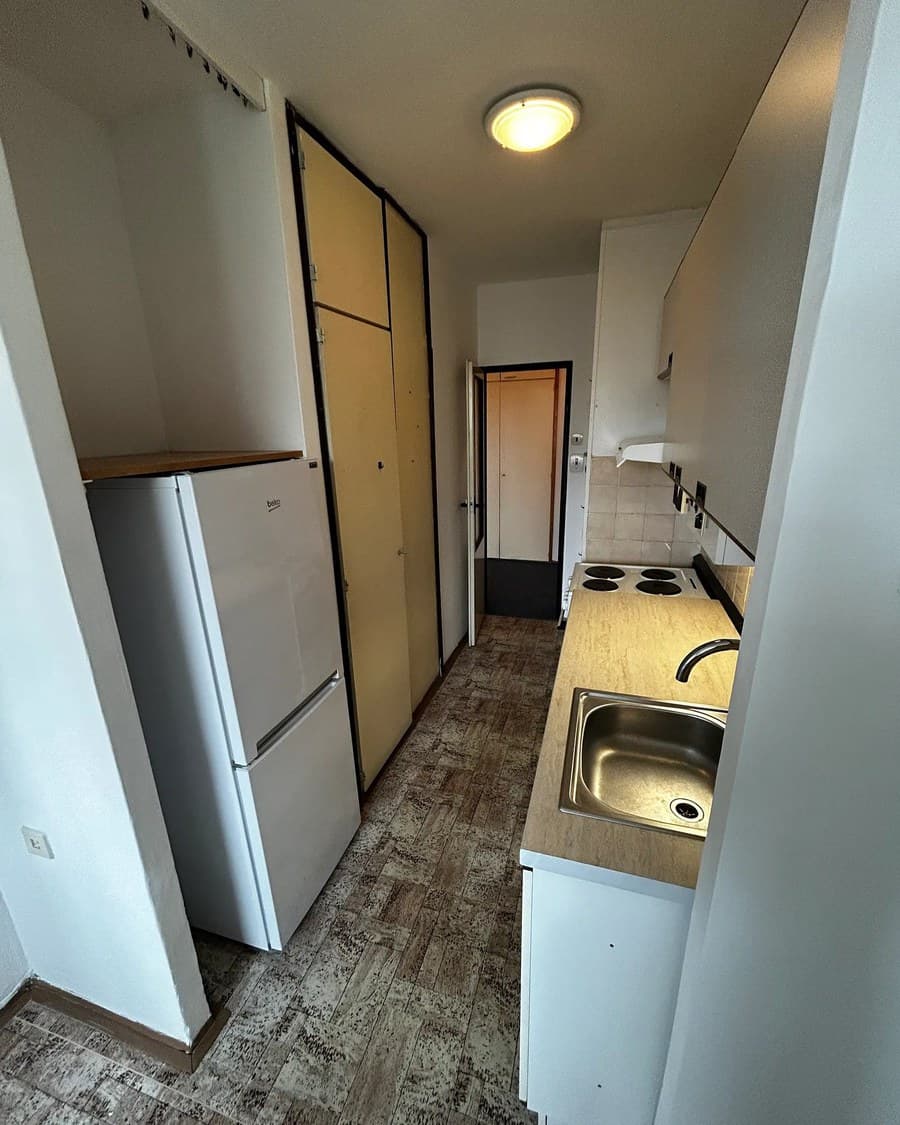
4. The Result
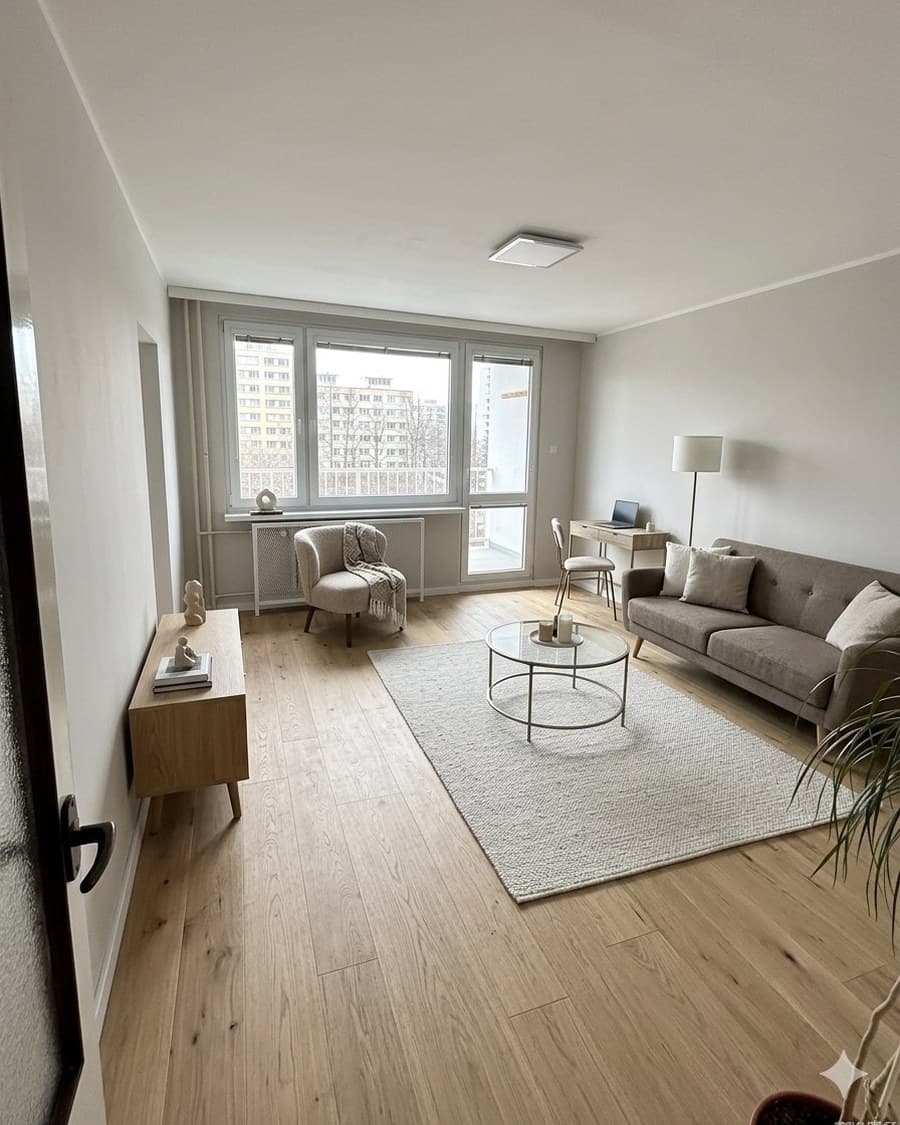
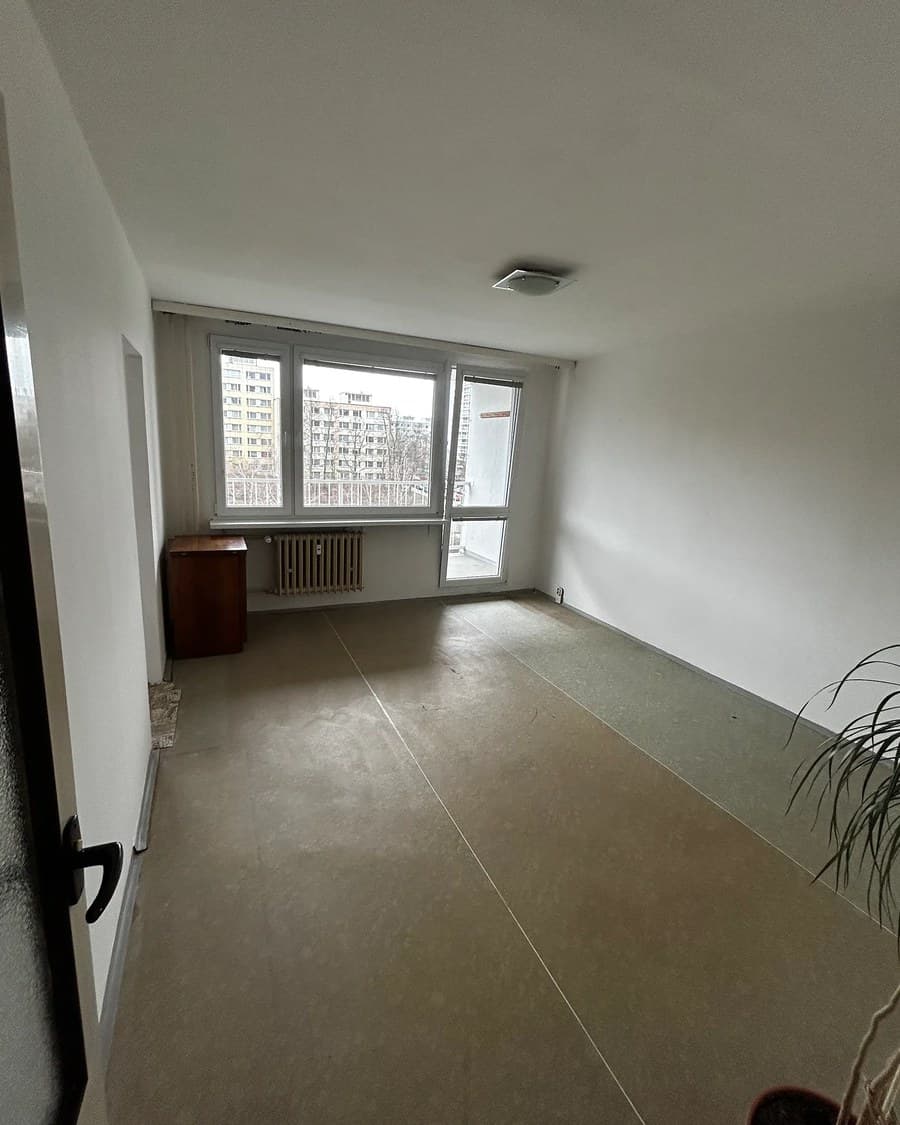
Here's what a real result looks like. An empty apartment living room and what Gemini made of it:
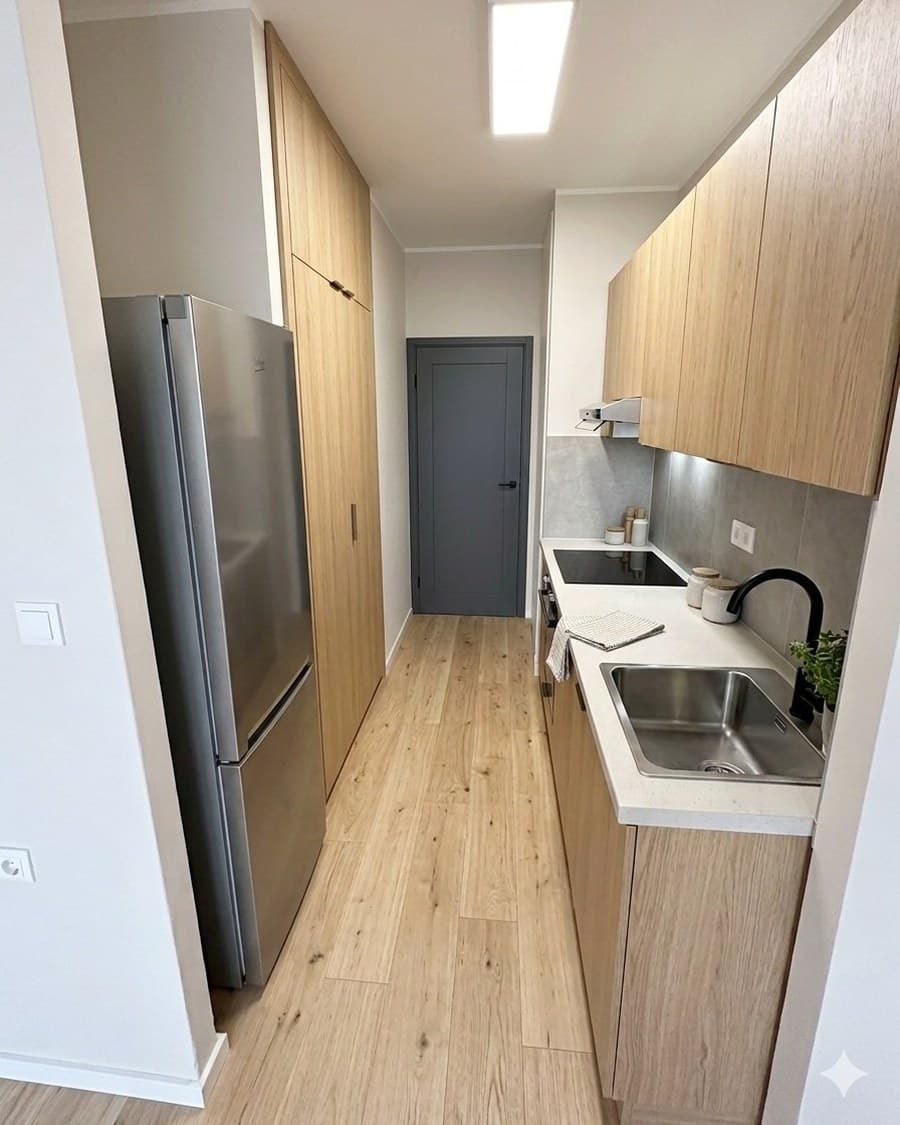
And here's a kitchen, same process, just a different room type in the prompt:
5. Iterate
The first result might not be perfect. Common issues and how to fix them:
- Weird furniture proportions → specify dimensions ("small two-seater, not a sectional")
- Changed perspective → add "maintain the exact viewing angle and perspective"
- Too crowded → "less furniture, airy minimalist style"
- Unrealistic lighting → "natural daylight from the window, no dramatic shadows"
Usually 2–3 attempts get you a usable result.
Using It for Different Rooms
The prompt above is universal. The only thing you change is the room type at the top:
- Living room, Gemini adds sofa, table, rug, decorations
- Bedroom, bed, nightstands, textiles
- Kitchen, modernizes cabinets, appliances, surfaces
- Kids' room, bed, desk, shelves, playful accessories
- Home office, desk, chair, shelves, lamp
- Bathroom, modernizes tiles, fixtures, accessories
You don't need to specify exact furniture. Gemini picks appropriate pieces based on the room type and the "modern, clean, bright" style instruction.
Things to Watch Out For
Legal Considerations
There's no explicit law banning virtual staging, but general rules about misleading advertising apply.
- Always disclose that it's a visualization. A note like "Visualization of potential furnishing" in the listing description is enough.
- Don't change the layout. Don't add windows, don't remove walls.
- Don't overdo it. Staging should show potential, not deceive.
Quality vs. Speed
Gemini is great for quick listing visualizations. For premium properties (over €500K), consider a professional staging service. The investment pays off there.
Style Consistency
If you're staging multiple rooms in one apartment, stick to one style. A Scandinavian living room and an industrial bedroom look odd. Just add to your prompt: "Same style as the living room, light wood, neutral tones."
Cost Comparison
| Method | Cost per room | Time | Quality |
|---|---|---|---|
| Physical homestaging | €200–600 | 1–3 days | Best |
| Professional virtual staging | €12–30 | 24–48h | Very good |
| Specialized AI platforms | €1–5 | Minutes | Good |
| Google Gemini | Free | Minutes | Good (with good prompts) |
For most apartments, Gemini is more than sufficient. You'll save hundreds on every listing.
Summary
Virtual homestaging with Gemini isn't the future, it's a tool you can use today. For free. Just:
- Photograph the empty apartment
- Upload the photo to Gemini
- Use the prompt from this article
- Put the result in your listing (labeled as "visualization")
In 10 minutes of work, you get a listing that catches the eye. And that's exactly what determines whether a buyer reaches out or scrolls past.
Using AI tools in your practice? stret.ai is a CRM built specifically for agents who want to work smarter. Join the waitlist and be among the first.
Want early access?
We're adding agents to the waitlist. Launching soon.